Import Resources to the backoffice with Images or Files via EXCEL/CSV
In order to Import an Excel/CSV with data elements to a backoffice model, in which you require to relate Images or files to a Binary field. You should proceed with the following:
1. Add the file name under the column of the binary field:
1. Add the file name under the column of the binary field:
Name | Image |
Test 1 | test_1.png |
Test 2 | test_2.jpeg |
2. Click to the Gear from the list view of the model, and click "Import records"

3. Select the Excel file in which you have the data to import
4. Upload the images named on the excel by clicking on the button "Upload your files"
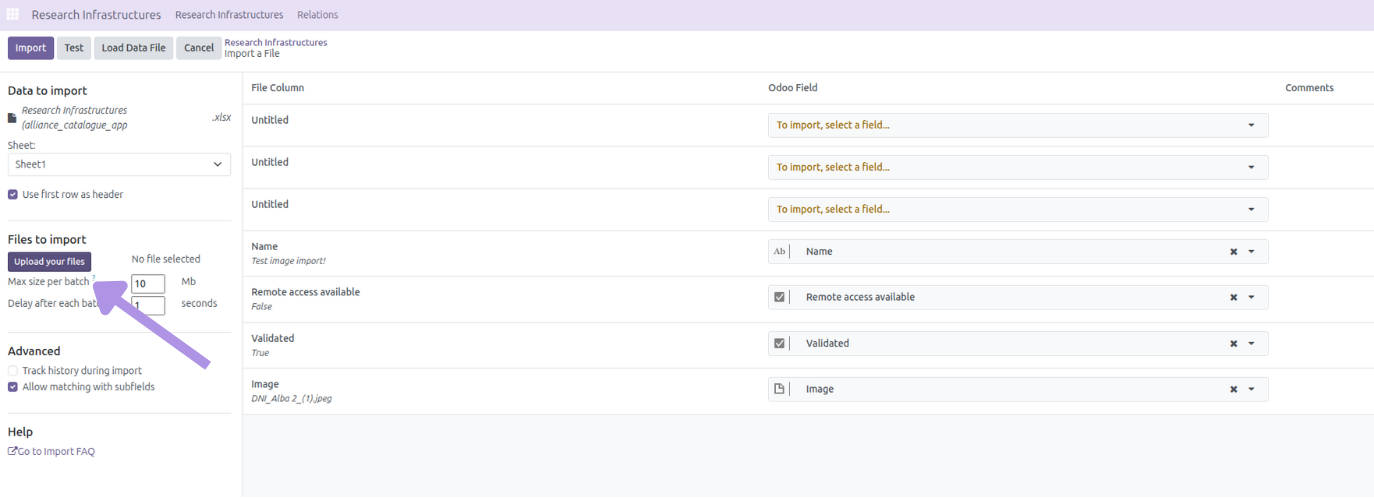
5. Once imported, the files will be matched by the name and related automatically.